Importer des photos de mannequin en pleine qualité depuis son téléphone
Importez les fichiers originaux depuis iPhone, Android, iCloud ou Google Photos sans captures d'écran ni compression inutile.
Une photo nette peut devenir floue, mal recadrée ou entourée d'éléments de téléphone si vous importez la mauvaise copie. Pour un profil de mannequin, partez toujours du fichier original, pas d'une capture, d'un téléchargement social ou d'une copie de messagerie.
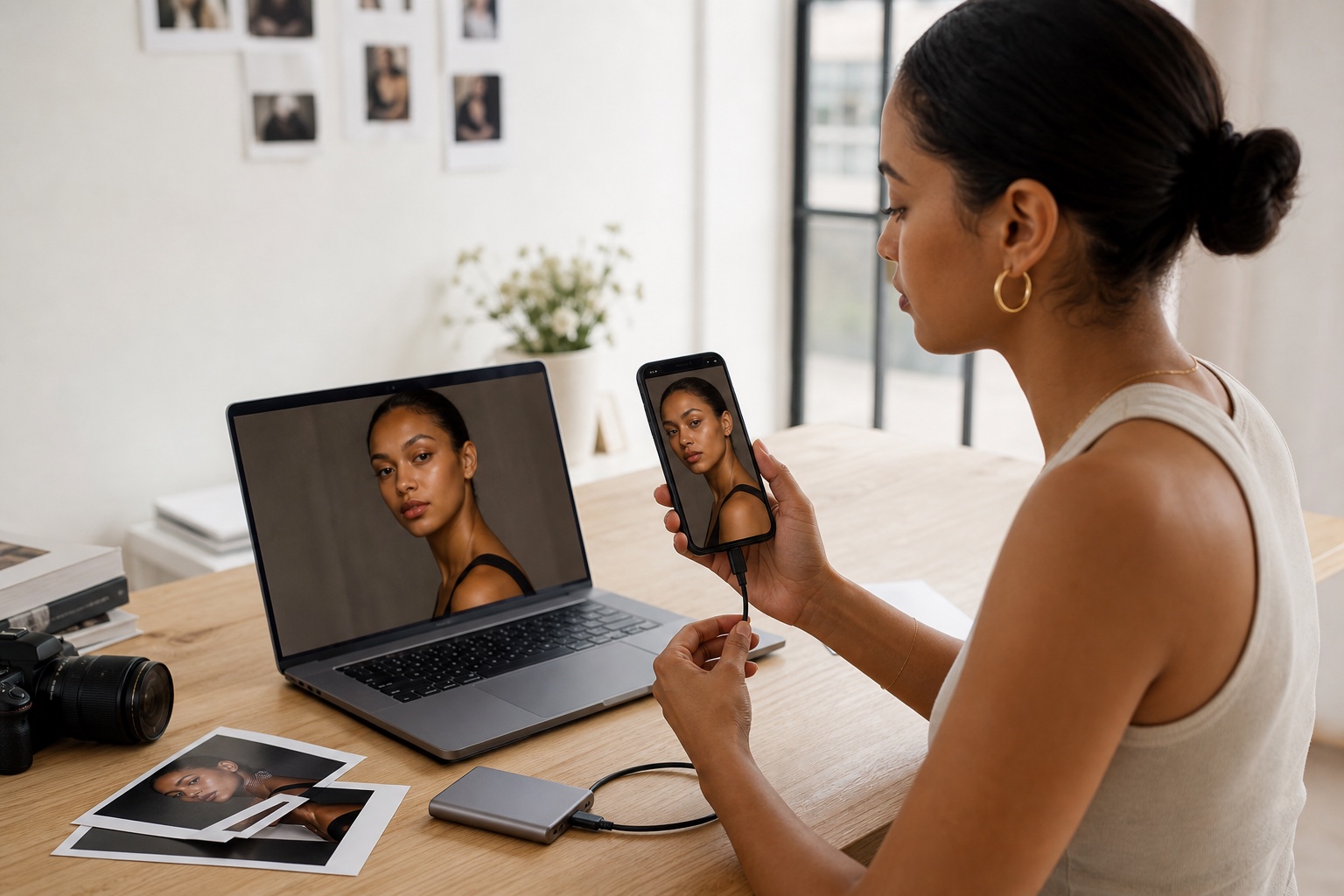
Réponse rapide
- Retrouvez la photo dans votre photothèque d'origine, cloud ou dossier du photographe.
- Téléchargez ou exportez le fichier original.
- Ne faites pas de capture et n'enregistrez pas depuis une publication sociale.
- Importez directement depuis Photos, Fichiers ou l'ordinateur.
- Vérifiez netteté, cadrage et orientation sur votre profil.
Si le fichier est déjà compressé, redemandez l'original. Agrandir une petite copie ne recrée pas les détails perdus.
Pourquoi éviter les captures d'écran
Une capture enregistre tout l'écran : barre d'état, zones noires, boutons, légendes ou outils de retouche. Elle utilise les dimensions de l'écran plutôt que celles de l'appareil photo.
Recadrer l'interface rend la capture plus propre, mais ne la transforme pas en original. Revenez au fichier source.
Avant le transfert
Créez un dossier Originaux portfolio et placez-y les images finales autorisées. Vérifiez que chaque fichier vient de l'appareil ou du photographe, reste net, est bien orienté et ne contient pas d'interface ni de filigrane retiré sans autorisation.
Un seul dossier maître évite d'importer plus tard une copie de chat ou de réseau social.
iPhone et iCloud Photos
iCloud Photos conserve les originaux en pleine résolution, tandis que l'iPhone peut garder des versions optimisées pour économiser de l'espace. Assurez-vous que l'original est téléchargé avant export ou import.
Options pratiques :
- Importer depuis le sélecteur Photos et laisser l'original se télécharger si nécessaire.
- Télécharger l'image depuis iCloud Photos sur un ordinateur puis importer le fichier local.
- Transférer avec l'app Photos ou un câble vers Mac ou PC.
- Lors d'un export vers un stockage connecté, choisir l'original non modifié si vous avez besoin du fichier appareil intact.
Ne photographiez pas l'écran simplement parce que l'original est dans iCloud.
Android et Google Photos
Google Photos peut sauvegarder en Original quality ou dans un mode d'économie d'espace qui compresse ou redimensionne. Pour les futures images de portfolio, choisissez Original quality lorsque la résolution capturée doit être conservée.
- Ouvrez l'image dans Google Photos et utilisez Télécharger si elle n'est pas déjà sur l'appareil.
- Sur ordinateur, sélectionnez l'image dans Google Photos puis téléchargez-la.
- Consultez les détails pour vérifier qualité de sauvegarde et dimensions.
S'il n'existe qu'une version réduite, cherchez dans le dossier appareil photo, une autre sauvegarde ou la galerie du photographe.
Recevoir des photos d'un photographe
Demandez les JPEG finaux via galerie, dossier cloud ou service de transfert. Une prévisualisation dans un chat peut servir à choisir, mais n'est pas forcément le fichier final.
Confirmez les droits d'usage, la présence de fichiers propres, le crédit nécessaire et le recadrage autorisé. Ne retirez jamais un filigrane sans accord.
La taille du fichier ne suffit pas
Vérifiez dimensions en pixels, netteté visible et source. Signaux d'alerte : seulement quelques centaines de pixels, détails de cheveux ou peau en blocs, icônes visibles, enregistrements répétés, grands bords noirs ou image nette uniquement en vignette.
Ne commencez pas par une application d'agrandissement. Cherchez d'abord l'original.
Importer et vérifier
Contrôlez le profil sur téléphone et ordinateur : cadrage, netteté, orientation, doublons et section correcte pour digitals, portfolio ou comp card.
Notre guide des types de photos vous aide à choisir la section.
Sources techniques
- Apple Support : transférer des photos depuis un iPhone ou iPad
- Apple Support : exporter l'original non modifié
- Aide Google Photos : choisir la qualité de sauvegarde
- Aide Google Photos : télécharger des photos ou vidéos
Que faire ensuite ?
Remplacez captures et copies compressées par les fichiers originaux, puis utilisez la checklist des erreurs de portfolio.